
The ls command linux is one of the most commonly used commands in Linux systems. It allows you to list files and directories easily.
In this guide, you’ll learn how to use the ls command linux with practical examples.
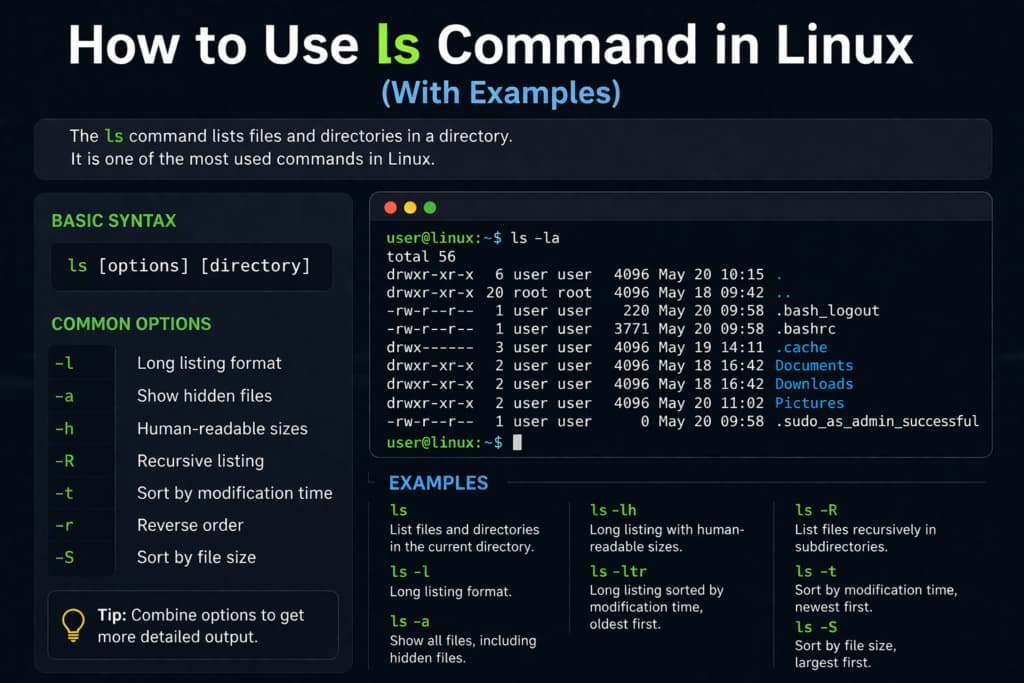
What is ls command linux
The ls command is used to display a list of files and directories in the current location. It is essential for navigating and managing your system from the terminal.
Basic Usage of ls
lsThis command lists all files and directories in the current location.
List Files with Details
ls -l
Displays detailed information such as file permissions, owner, size, and last modification date.
Show Hidden Files
ls -aShows hidden files, which usually start with a dot (.).
Human Readable File Sizes
ls -lhDisplays file sizes in a human-readable format such as KB, MB, or GB.
Sort Files by Date
ls -ltSorts files by modification date, showing the most recent files first.
List Files Recursively
ls -RLists files and directories recursively, including all subdirectories.
If you want to learn more, check out our full Linux commands list.
ls command linux examples
Here are some practical ls command linux examples that you can use in real situations.
ls -laThis command lists all files, including hidden ones, in a detailed format.
ls /homeLists files inside the /home directory.
ls -lh /varShows files in /var directory with human-readable sizes.
Common ls Command Options
Here are some of the most useful ls command options you should know:
-l → show detailed list
-a → show hidden files
-h → human readable sizes
-t → sort by time
-R → recursive listing
When to Use ls Command in Linux
The ls command linux is used whenever you need to explore files and directories in a Linux system. It is especially useful for system administrators, developers, and beginners who work in the terminal daily.
For example, you can use the ls command linux to quickly check directory contents, verify file creation, or analyze file structures in different locations.
Tips for Using ls Command Efficiently
To use the ls command linux more efficiently, you can combine multiple options together. For example, using ls -lah will show detailed information along with hidden files in a human-readable format.
Learning these combinations will help you save time and improve your workflow in the Linux terminal.
Conclusion
Mastering the ls command linux will significantly improve your efficiency when working in the terminal
You can learn more about Linux commands in the official documentation.